Budget-Friendly Home Office Ergonomics: 4 Upgrades Under $100
Anúncios
In today’s dynamic work landscape, the home office has evolved from a temporary solution to a permanent fixture for millions. While the convenience of working from home is undeniable, it often comes with a hidden cost: the potential for poor ergonomics. Long hours spent hunched over a laptop, with inadequate seating or improper screen height, can lead to a myriad of physical ailments, from neck and back pain to carpal tunnel syndrome and eye strain. These discomforts not only impact your physical well-being but also severely hinder your productivity and overall job satisfaction. Investing in proper home office ergonomics isn’t a luxury; it’s a necessity for sustained health and efficiency.
Many people shy away from ergonomic upgrades, assuming they come with a hefty price tag. However, this couldn’t be further from the truth. You don’t need to break the bank to create a more comfortable and supportive workspace. With a strategic approach and a budget of under $100, you can make significant improvements that will transform your daily work experience. This article will guide you through four essential, budget-friendly ergonomic upgrades that can dramatically enhance your current home office setup. We’ll delve into each upgrade, explaining its benefits, how to choose the right one, and tips for seamless integration into your existing space. Get ready to boost your comfort, reduce strain, and unlock new levels of productivity with smart, affordable ergonomic solutions.
Anúncios
The Importance of Home Office Ergonomics: Why It Matters More Than You Think
Before we dive into the specific upgrades, let’s take a moment to truly understand why home office ergonomics is so crucial. It’s not just about feeling a little more comfortable; it’s about preventative health, sustained productivity, and long-term well-being.
Preventing Musculoskeletal Disorders (MSDs)
Working in a non-ergonomic setup for extended periods can lead to a range of musculoskeletal disorders (MSDs). These include:
Anúncios
- Neck and Shoulder Pain: Often caused by looking down at a laptop screen, holding a phone between your ear and shoulder, or having a monitor placed too high or too low.
- Back Pain: Poor posture, inadequate lumbar support, and sitting for too long without breaks contribute significantly to both upper and lower back pain.
- Wrist and Hand Issues: Carpal tunnel syndrome, tendonitis, and other repetitive strain injuries (RSIs) can develop from improper keyboard and mouse positioning, leading to discomfort, numbness, and weakness.
- Eye Strain and Headaches: Incorrect monitor distance, glare, and poor lighting can cause digital eye strain, blurriness, dry eyes, and tension headaches.
These conditions can range from mild discomfort to chronic pain, significantly impacting your quality of life both inside and outside of work. Proactive ergonomic adjustments can help prevent these issues from developing or worsening.
Boosting Productivity and Focus
It’s simple: when you’re uncomfortable, you’re distracted. Constant fidgeting, shifting positions to alleviate pain, or battling headaches takes away from your ability to concentrate on tasks. A well-designed ergonomic workspace, on the other hand, allows you to maintain a comfortable posture for longer, reducing physical distractions and freeing up your mental energy to focus on your work. This leads to:
- Improved Concentration: Less pain means fewer interruptions to your thought process.
- Increased Efficiency: You can work more effectively when you’re not battling discomfort.
- Reduced Errors: Fatigue and distraction due to discomfort can lead to mistakes. A comfortable setup helps maintain alertness.
- Enhanced Creativity: When your body is at ease, your mind is more free to engage in creative problem-solving.
Long-Term Health Benefits
Investing in home office ergonomics is an investment in your long-term health. By preventing MSDs and reducing chronic pain, you’re setting yourself up for a healthier future. It can also contribute to:
- Better Circulation: Proper posture and movement encourage healthy blood flow.
- Reduced Fatigue: When your body is supported correctly, your muscles don’t have to work as hard, leading to less fatigue by the end of the day.
- Improved Mood: Chronic pain can take a toll on mental health. Reducing physical discomfort can lead to a more positive outlook and reduced stress levels.
Understanding these benefits underscores why even small, affordable changes to your home office can have a profound and lasting impact on your professional and personal life. Now, let’s explore how you can achieve these benefits without exceeding your budget.
Ergonomic Upgrade 1: The Monitor Riser & External Keyboard/Mouse Combo
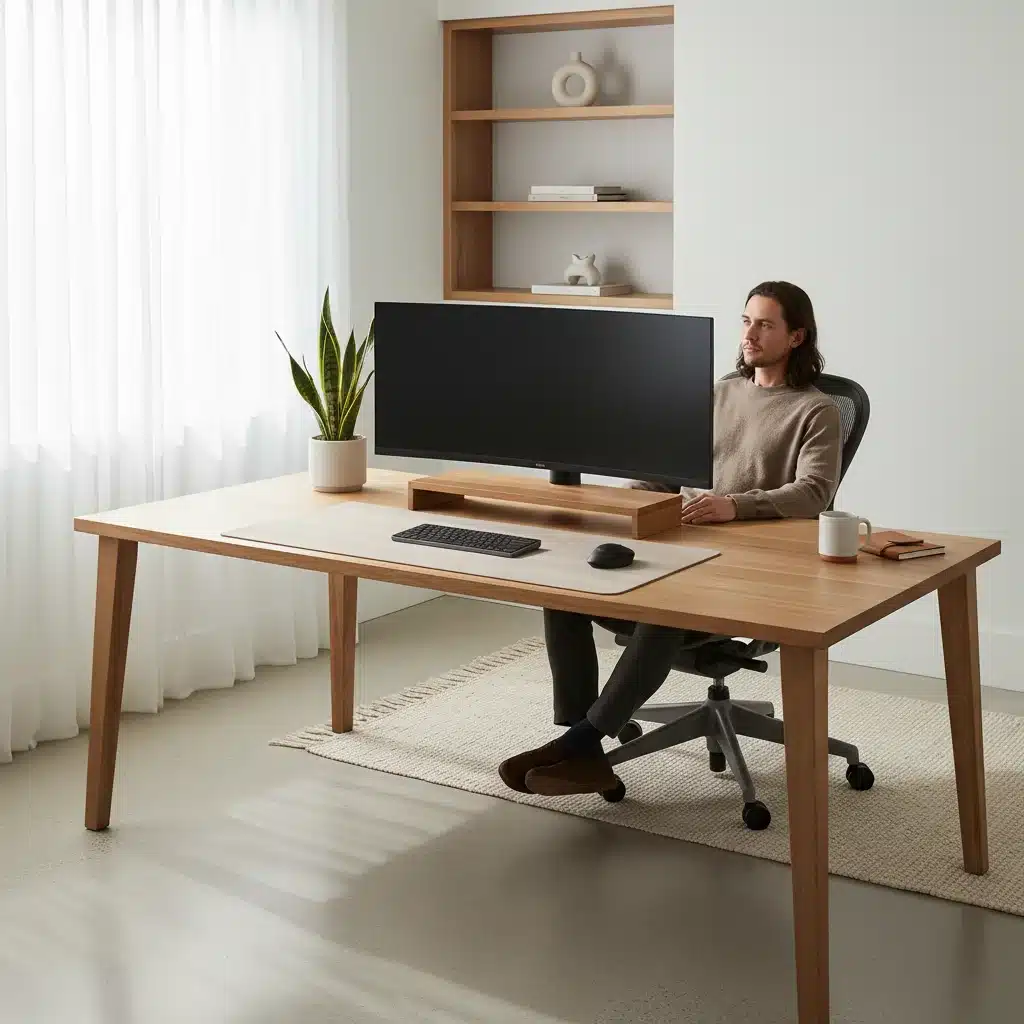
One of the most common ergonomic mistakes in a home office is working directly from a laptop. While convenient for portability, a laptop’s integrated screen and keyboard force you into awkward positions. You either crane your neck down to see the screen or extend your arms uncomfortably to type. The solution? Elevate your screen and use separate input devices.
Why This Upgrade is Crucial for Home Office Ergonomics
The goal is to achieve a neutral posture where your head is balanced directly over your shoulders, your eyes are level with the top third of your screen, and your forearms are parallel to the floor when typing. A monitor riser addresses the screen height, while an external keyboard and mouse allow you to position your hands and wrists correctly.
Benefits:
- Reduces Neck and Shoulder Strain: By raising your monitor to eye level, you eliminate the need to look down, significantly reducing stress on your cervical spine and upper back muscles.
- Improves Posture: Encourages a more upright sitting posture, preventing slouching and its associated back problems.
- Prevents Wrist and Hand Pain: An external keyboard and mouse allow you to keep your wrists straight and relaxed, minimizing the risk of carpal tunnel syndrome and other repetitive strain injuries.
- Enhances Visual Comfort: Proper screen height and distance reduce eye strain and fatigue.
Choosing Your Monitor Riser (Under $30)
Monitor risers come in various forms, but for under $30, you’ll typically find:
- Simple Stand: A basic platform that elevates your monitor. Look for options with adjustable height if possible, or ensure the fixed height brings your screen to the correct level.
- Shelf-Style Riser: These often provide extra storage space underneath for notebooks, pens, or even a docking station, helping to declutter your desk.
- DIY Option: If your budget is extremely tight, a stack of sturdy books or reams of paper can serve as a temporary riser, though a dedicated product offers better stability and aesthetics.
What to Look For:
- Stability: Ensure it can safely hold the weight of your monitor or laptop.
- Height: The top of your screen should be at or slightly below eye level when you’re sitting comfortably.
- Material: Wood, metal, or durable plastic are common. Consider your desk’s aesthetics.
Selecting an External Keyboard and Mouse (Under $70 Combined)
This is where personal preference plays a significant role, but here are some ergonomic considerations:
Keyboards:
- Standard vs. Ergonomic: A standard full-sized keyboard is often sufficient if you maintain proper wrist posture. Ergonomic keyboards, like split or curved designs, can further reduce wrist deviation.
- Key Feel: Some prefer mechanical keyboards for tactile feedback, while others like quiet membrane keys.
- Wireless vs. Wired: Wireless offers more flexibility in positioning, reducing cable clutter.
Budget-Friendly Options: Many reliable wired or basic wireless keyboards can be found for $20-$40.
Mice:
- Ergonomic Shape: Look for a mouse that fits comfortably in your hand, allowing your wrist to remain straight and your fingers to rest naturally.
- Vertical Mouse: These orient your hand in a ‘handshake’ position, which many find to be more natural and less straining on the wrist and forearm.
- Trackball Mouse: If you have limited desk space or severe wrist issues, a trackball allows you to move the cursor without moving your hand or arm.
- DPI Settings: A mouse with adjustable DPI (dots per inch) allows you to control cursor sensitivity, reducing the amount of physical movement needed.
Budget-Friendly Options: Good quality ergonomic mice, including some vertical models, can be found for $20-$50.
Integration Tips:
- Place your monitor riser directly in front of you, about an arm’s length away.
- Position your external keyboard directly in front of you, with enough space to rest your wrists occasionally (though aim to type with wrists floating).
- Keep your mouse close to your keyboard to avoid excessive reaching.
By investing in a monitor riser and an external keyboard/mouse, you’re tackling two of the biggest ergonomic culprits in a laptop-centric home office for a combined cost well within our $100 limit. This foundational change will make a noticeable difference in your daily comfort and posture.
Ergonomic Upgrade 2: Lumbar Support Cushion & Seat Cushion
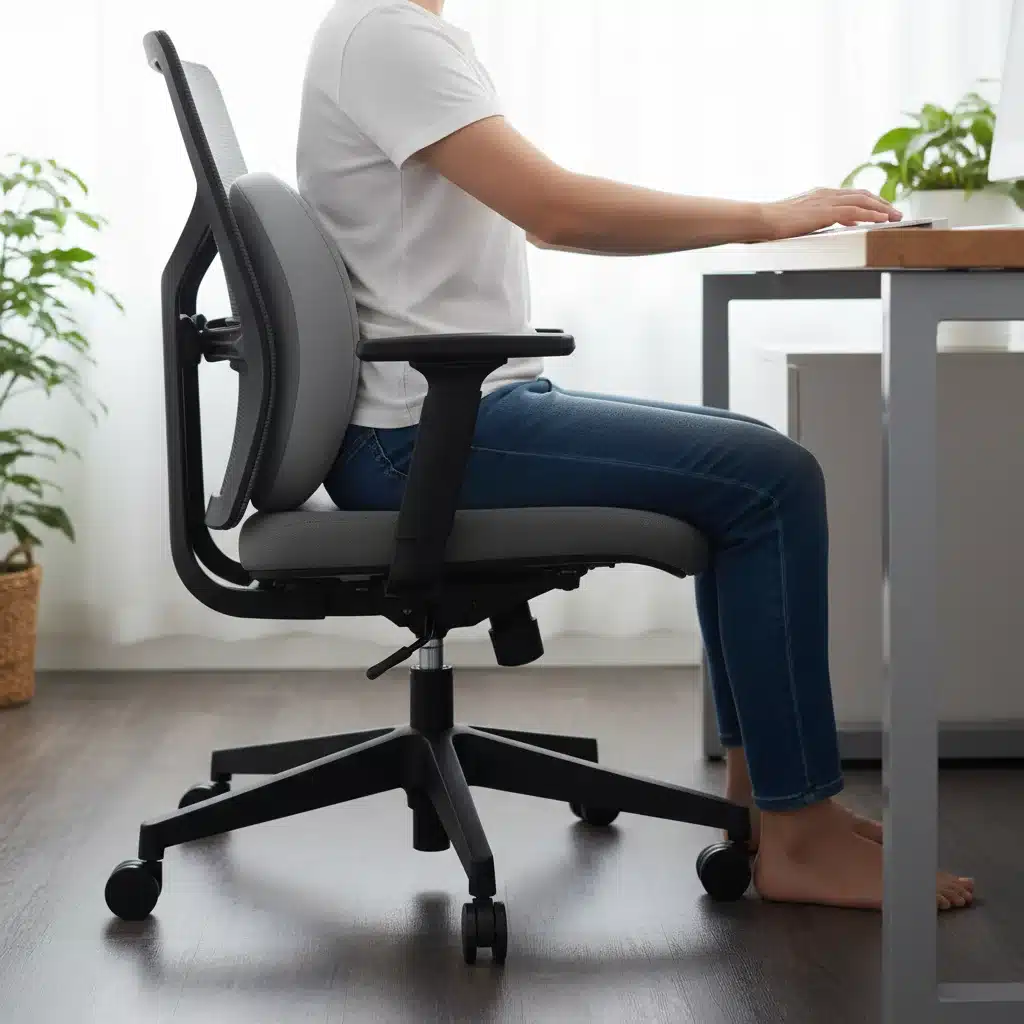
Even the most expensive office chairs aren’t one-size-fits-all. If your current chair lacks adequate support, or if you’re using a dining chair, adding a lumbar support cushion and a seat cushion can dramatically improve your sitting posture and comfort without buying a whole new chair.
Why This Upgrade is Essential for Home Office Ergonomics
The natural curve of your lower back (lumbar spine) needs support to maintain a healthy S-shape. Without it, your spine tends to slouch into a C-shape, putting undue pressure on your discs and leading to lower back pain. A good seat cushion can improve circulation and alleviate pressure points on your tailbone and hips.
Benefits:
- Alleviates Lower Back Pain: Lumbar support helps maintain the natural curve of your spine, reducing strain on your back muscles and discs.
- Improves Posture: Encourages you to sit upright, preventing slouching and promoting a healthier spinal alignment.
- Enhances Comfort: A supportive seat cushion distributes weight more evenly, reducing pressure on your tailbone and hips, which can be especially beneficial during long sitting periods.
- Boosts Circulation: By reducing pressure points, seat cushions can improve blood flow to your lower extremities.
Choosing Your Lumbar Support Cushion (Under $30)
Lumbar cushions come in various materials and designs:
- Memory Foam: Molds to the shape of your back, offering personalized support. It’s often the most comfortable option.
- Mesh: Breathable and firm, good for airflow, but might offer less contouring.
- Inflatable/Adjustable: Some cushions allow you to inflate them to your desired firmness, offering customizable support.
What to Look For:
- Shape: Look for a cushion that fills the gap between your lower back and the chair back, supporting the natural inward curve of your spine.
- Straps: Many come with adjustable straps to secure them to your chair, preventing slippage.
- Breathability: Especially important if you tend to get warm while sitting.
Selecting a Seat Cushion (Under $50)
Seat cushions primarily focus on pressure relief and comfort:
- Memory Foam: Excellent for conforming to your body and distributing weight.
- Gel Cushions: Often combined with foam, gel layers provide cooling properties and additional pressure relief.
- Wedge Cushions: Designed to tilt your pelvis slightly forward, encouraging a more upright posture.
- Coccyx Cushions: Feature a cutout at the back to relieve pressure on the tailbone, ideal for those with coccyx pain.
What to Look For:
- Density: A cushion that’s too soft won’t provide enough support, while one that’s too firm might be uncomfortable. Find a balance.
- Size: Ensure it fits your chair and supports your thighs without extending too far forward.
- Cover: Removable, washable covers are a practical feature.
Integration Tips:
- Place the lumbar cushion so its most prominent part fits into the natural curve of your lower back, usually just above your belt line.
- Position the seat cushion firmly against the back of your chair, ensuring your tailbone is comfortably supported (or aligned with the cutout if using a coccyx cushion).
- Experiment with placement until you feel the most comfortable and supported.
Ergonomic Upgrade 3: Adjustable Wrist Rests for Keyboard and Mouse
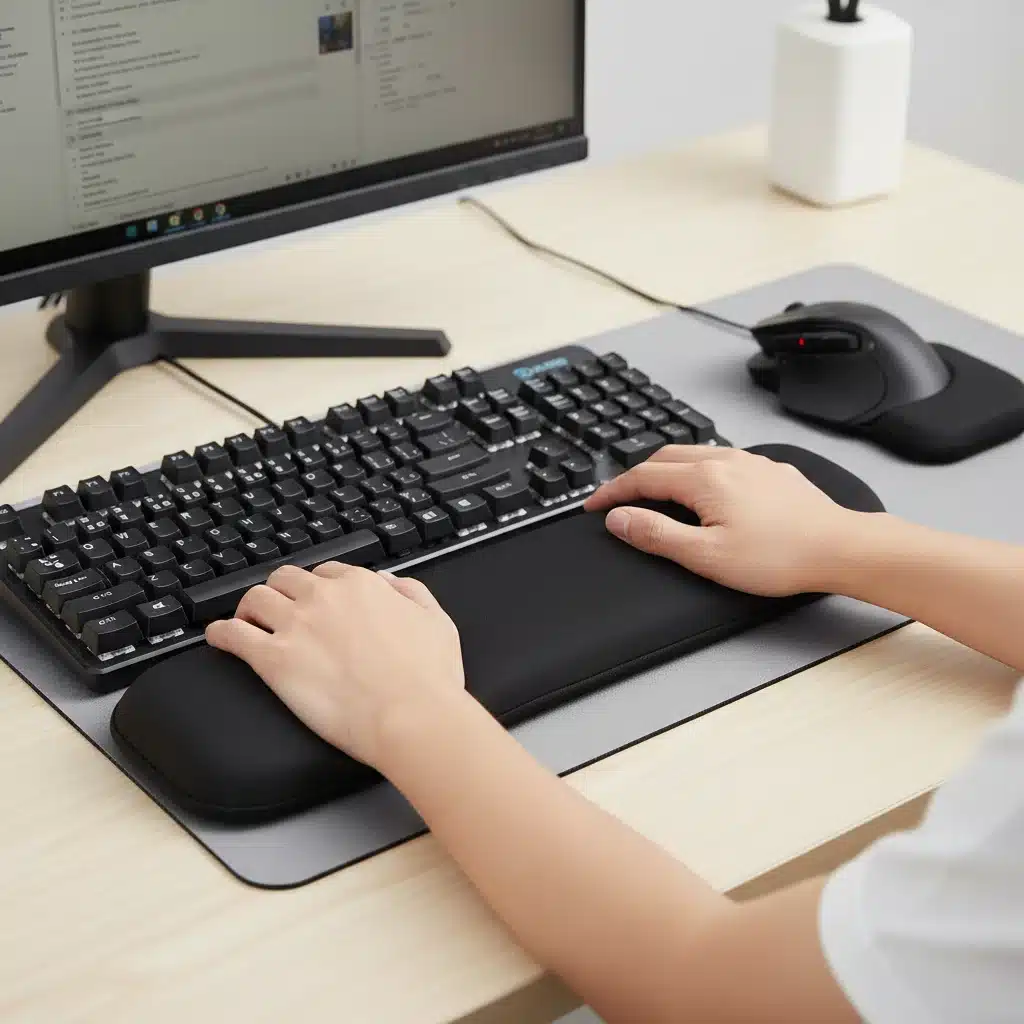
Even with an external keyboard and mouse, improper wrist posture can lead to strain. Wrist rests are designed to keep your wrists in a neutral, straight position, preventing them from bending upwards or downwards, which can compress nerves and tendons.
Why This Upgrade is Important for Home Office Ergonomics
Repetitive strain injuries (RSIs) like carpal tunnel syndrome are common among computer users. A significant contributor is maintaining an extended or flexed wrist position for long periods. Wrist rests help maintain a straight line from your forearm to your hand, reducing stress on the carpal tunnel and surrounding tissues.
Benefits:
- Prevents Wrist Strain and Pain: Keeps wrists in a neutral position, reducing the risk of conditions like carpal tunnel syndrome and tendonitis.
- Enhances Comfort: Provides a soft surface for your wrists to rest on during breaks from typing or mousing.
- Improves Typing Posture: Encourages better hand and arm alignment, which can positively impact overall upper body posture.
- Reduces Fatigue: Less strain on your wrists means less fatigue in your hands and forearms.
Choosing Your Wrist Rests (Under $20)
Wrist rests are relatively inexpensive but offer significant ergonomic benefits. They typically come in two main forms: for keyboards and for mice.
Keyboards:
- Material: Memory foam, gel, or beads are common. Memory foam offers good contouring, while gel is often cooler.
- Length: Should span the length of your keyboard, or at least the primary typing area.
- Height: Should be roughly the same height as the front edge of your keyboard, allowing your wrists to remain level.
Mouse Wrist Rests:
- Shape: Can be a small pad, a cushion integrated into a mouse pad, or even a small, movable support.
- Material: Similar to keyboard rests, memory foam and gel are popular.
- Mobility: Some mouse rests are designed to move with your hand, which can be beneficial for dynamic mouse users.
What to Look For:
- Firmness: Not too soft that your wrists sink in, and not too hard that they create pressure points.
- Non-Slip Base: Essential to keep the rests in place during use.
- Comfortable Surface: A smooth, breathable fabric is usually preferred.
Integration Tips:
- The wrist rest is primarily for resting your wrists during pauses, not for supporting them while actively typing or mousing. When typing, try to keep your wrists floating above the keyboard.
- Position the keyboard wrist rest directly in front of your keyboard.
- Place the mouse wrist rest where your wrist naturally falls when using the mouse, ensuring it supports the base of your palm/wrist.
This simple, inexpensive addition can make a world of difference in preventing discomfort and injury in your hands and wrists, making it a highly valuable component of your home office ergonomics strategy.
Ergonomic Upgrade 4: Footrest for Proper Leg and Back Support
Often overlooked, a footrest plays a crucial role in completing your ergonomic setup, especially if your chair isn’t fully adjustable or if you’re shorter and your feet don’t comfortably reach the floor.
Why This Upgrade is Vital for Home Office Ergonomics
When your feet are dangling or not firmly planted, it puts pressure on your thighs, restricts blood flow, and can lead to poor posture. A footrest ensures your feet are supported, allowing your knees to be at a 90-degree angle or slightly greater, and your hips to be properly aligned.
Benefits:
- Improves Posture: By supporting your feet, it helps maintain the natural curve of your spine and prevents slouching.
- Enhances Circulation: Prevents pressure on the backs of your thighs, promoting better blood flow to your lower legs and feet.
- Reduces Leg and Foot Fatigue: Provides a comfortable resting place for your feet, reducing strain and discomfort during long periods of sitting.
- Alleviates Lower Back Pressure: Proper leg positioning can take stress off your lower back.
- Customizable Comfort: Many footrests are adjustable, allowing you to find the perfect angle and height for your body.
Choosing Your Ergonomic Footrest (Under $40)
Footrests vary in design and features, but many excellent options are available within our budget.
- Adjustable Height and Angle: This is key. Look for footrests that allow you to tilt and adjust the height to find your ideal position.
- Material: Plastic is common and lightweight. Some have textured surfaces or massage rollers for added comfort and stimulation.
- Rocking Feature: Some footrests allow for gentle rocking, which can encourage movement and further improve circulation.
What to Look For:
- Non-Slip Surface: Crucial for stability and safety.
- Sturdy Construction: It should feel solid and not wobble.
- Size: Ensure it’s wide enough for both your feet to rest comfortably.
Integration Tips:
- Place the footrest directly under your desk, centered with your chair.
- Adjust the height and angle so your feet are flat and fully supported, your knees are at approximately a 90-degree angle (or slightly open), and your hips are slightly higher than your knees.
- Don’t be afraid to adjust it throughout the day. Small movements and changes in angle can help prevent stiffness.
Beyond the Upgrades: Habits for Optimal Home Office Ergonomics
While these four upgrades significantly enhance your home office ergonomics, remember that equipment alone isn’t enough. Good habits are equally important. Here are some additional tips to maximize your comfort and productivity:
Take Regular Breaks
The human body isn’t designed for prolonged static postures. Aim for a short break (1-2 minutes) every 20-30 minutes, and a longer break (10-15 minutes) every hour or two. During these breaks:
- Stand Up and Stretch: Gentle neck rolls, shoulder shrugs, arm circles, and back extensions can relieve tension.
- Walk Around: Even a quick stroll to the kitchen or around your living room can boost circulation.
- Eye Breaks: Follow the 20-20-20 rule: Every 20 minutes, look at something 20 feet away for 20 seconds to reduce eye strain.
Practice Active Sitting
Even with the best chair and cushions, avoid staying in one rigid position. Shift your weight, recline occasionally, and adjust your posture slightly throughout the day. Some chairs with rocking mechanisms can encourage this, but you can also do it consciously.
Optimize Lighting
Good lighting is crucial for preventing eye strain. Position your monitor to avoid glare from windows or overhead lights. Use ambient lighting that is bright enough but not harsh. A desk lamp with adjustable brightness can provide task lighting without causing reflections on your screen.
Hydrate and Nourish Your Body
Keep a water bottle within reach to stay hydrated. Dehydration can contribute to fatigue and headaches. Healthy snacks can also help maintain energy levels and focus.
Listen to Your Body
Pay attention to any aches or pains. If you consistently experience discomfort in a particular area, it’s a signal that something in your setup or habits needs adjustment. Don’t ignore persistent pain; consult a healthcare professional if necessary.
Organize Your Workspace
A cluttered workspace can lead to inefficient movements and increased stress. Keep frequently used items within easy reach to minimize stretching and reaching. A tidy desk also contributes to a clearer mind and better focus.
Conclusion: A Small Investment for Big Returns in Home Office Ergonomics
Creating an ergonomically sound home office doesn’t require a complete overhaul or a significant financial outlay. As we’ve explored, with a budget of under $100, you can implement four impactful upgrades: a monitor riser with an external keyboard and mouse, lumbar and seat cushions, adjustable wrist rests, and a footrest. These additions directly address the most common ergonomic pitfalls, transforming your workspace from a source of strain into a haven of comfort and efficiency.
Remember, the benefits extend far beyond just feeling better. Improved home office ergonomics leads to reduced pain, enhanced concentration, increased productivity, and a greater sense of well-being. It’s an investment in your health, your career, and your overall quality of life. Don’t let the fear of cost deter you from making these crucial changes. Start with one or two upgrades, observe the positive impact, and gradually build your ideal ergonomic setup. Your body and your productivity will thank you for it.
Take the first step today towards a healthier, more productive work-from-home experience. Assess your current setup, identify the areas needing improvement, and choose the ergonomic upgrades that will make the biggest difference for you. Small changes can indeed lead to monumental improvements when it comes to your home office ergonomics.